Sky Stream Troubleshooting: Startup, Connection and Remote Fixes
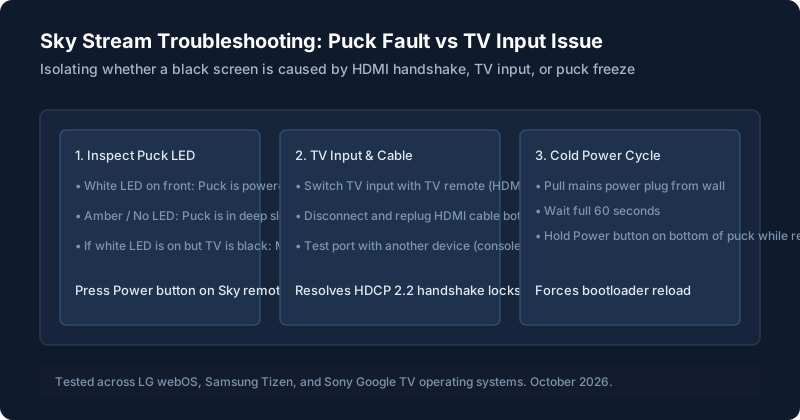
Is It the Puck or the TV?
When a Sky Stream puck misbehaves, owners frequently report that a second TV in another room works fine while one puck freezes. To isolate:
- Check the puck’s front LED: If the front white LED responds when you click the remote, the puck is running and sending signals. The issue is likely your TV's HDMI handshake or input selection.
- Switch TV inputs: Use your original TV remote to switch from HDMI 1 to HDMI 2 and back. This forces your television's HDCP handshake chip to re-poll the puck.
- Swap HDMI cables: Ensure you are using the high-speed HDMI cable supplied with Sky Stream. Older HDMI 1.4 cables cannot carry 4K HDR streams reliably.
Puck Won’t Start or Is Stuck on a Logo
If your puck freezes during boot:
The Cold Hard Power Drain
Pull the power lead from the rear of the puck (not just from the wall). Wait 60 seconds. Reinsert firmly. The white LED on the front should flash several times before turning solid.
Hardware Recovery Mode (Bottom Button)
Unplug the puck. Press and hold the physical standby/reset button on the underside of the puck. While holding the button, plug the power lead back in. Continue holding until the LED flashes amber and white alternately, then release. This forces the puck to reload factory backup firmware.
Black Screen or No Picture
If you have sound but no picture, or no signal at all, your TV's HDMI port may be struggling with 4K HDR 10-bit handshaking. Connect the puck to an alternate HDMI port, or navigate in your TV's main settings to ensure "Enhanced HDMI" or "HDMI Ultra HD Deep Colour" is enabled for that port.
Freezing and Buffering
Stream pucks require a reliable connection of at least 25Mbps for HD and 30Mbps for UHD. Because pucks are small and often tucked behind TVs or inside media units, internal Wi-Fi antennas can suffer significant RF degradation.
For extensive connection optimization, review our universal Wi-Fi and buffering fixes.
Wi-Fi and Ethernet Problems
If connecting via ethernet, remember to disable Wi-Fi in the puck settings menu. Avoid placing the puck directly on top of other hot electronic equipment (like game consoles or AV receivers), as thermal throttling causes network drops.
Remote and Voice Problems
The Sky Stream remote is identical in function to the Sky Glass remote. If it refuses to pair or voice commands fail:
- Press and hold 7 and 9 for 5 seconds to reset.
- Press and hold 1 and 3 for 3 seconds pointing at the puck to re-pair via Bluetooth.
Error Messages
| Error Message | Probable Cause | Remedy |
|---|---|---|
| "No Satellite Signal" (Confusion error) | Puck cannot reach cloud broadcast feed | Reboot router; check broadband connection |
| "Maximum streams reached" | Whole Home pack account limit active | Stop playback on secondary puck or Sky Go app |
| "HDCP Error" | HDMI copy protection handshake failure | Swap HDMI lead or toggle TV Enhanced HDMI |
When to Contact Sky
If the puck's front LED remains completely off after testing alternate plug sockets, the external power brick or internal power rail has failed. Sky will issue a replacement puck via postal courier within 24-48 hours under your ongoing service agreement.
Still stuck after trying these steps?
Want to understand full hardware features and multi-room setup? Read our comprehensive Sky Stream guide or see how it compares to the all-in-one TV in Sky Glass vs Sky Stream.