Sky Glass Won’t Turn On or Black Screen: Causes and Fixes
First, Identify What the TV Is Doing
Before touching any cables, check the small standby light on the lower bezel. Its color and behavior reveal whether the fault sits in mains power, internal hardware, or software boot.
| What you see | What it usually means | Where to go |
|---|---|---|
| No standby LED light at all | No mains electricity reaching TV board or power inlet disconnected | TV Has No Power steps |
| Red or white light on, screen completely black | TV in deep standby or HDMI/backlight driver handshake stalled | Power on but black screen |
| Black screen, but sound continues playing | Known firmware decoder bug dropping video bitstream buffer | screen goes black but the sound keeps playing |
| Stuck indefinitely on white Sky logo | OS bootloader halted during recovery verification | Logo hang steps |
| Turns on for 30 seconds, then reboots in a loop | Thermal protection trip or corrupted cache partition | Restart loop steps |
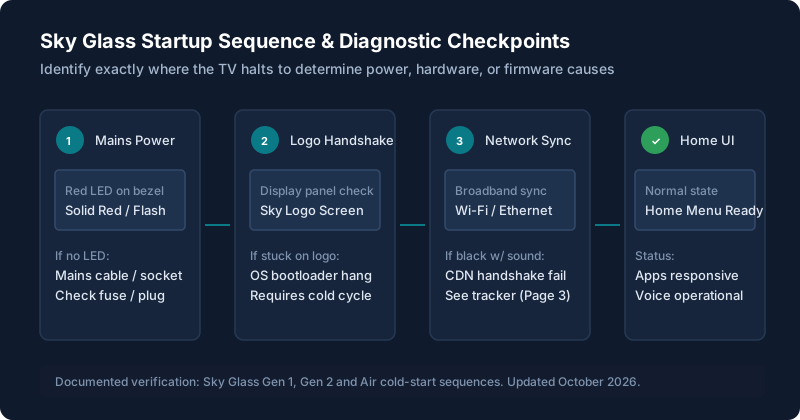
TV Has No Power
If the LED indicator on the bottom right corner is completely dark:
Check the physical figure-8 power lead in the rear cavity
On both Gen 2 and Air, the mains lead plugs into a recessed socket behind a plastic clip. Push firmly until you feel a positive mechanical click. Cable slack frequently drops the contact pin.
Test the wall socket with another appliance
Plug a lamp or phone charger into the same wall socket. Do not use multi-gang extension leads or surge adapters while diagnosing power drops.
TV Has Power but the Screen Is Black
If the standby light is illuminated (red or white) but the panel displays nothing:
First, test if the TV is responding to the remote by pressing the Home button once. If the red light does not blink when you click, the TV is not receiving the signal. Consult our guide on remote not working to re-pair the Bluetooth connection.
Second, perform a cold power drain: unplug the TV from the wall socket (do not just use the remote standby). Leave it disconnected for a full 60 seconds. While unplugged, press and hold the physical standby button on the right side of the TV for 10 seconds to drain lingering capacitor charge. Reconnect the plug and wait 30 seconds before touching the remote.
Screen Goes Black While Watching but the Sound Continues
If audio continues playing uninterrupted while the picture disappears, this is not a general power fault. It is a known software decoder fault documented across UK user communities.
Do not attempt a factory reset for this symptom. Review our active monitoring page on the known black screen issue for verified workarounds and case logging guidance.
TV Is Stuck on the Sky Logo
When Sky Glass powers up, the white Sky logo should display for approximately 15 to 25 seconds before giving way to the home menu. If your TV remains frozen on the logo for more than 3 minutes, the operating system has stalled during bootloader verification.
If the TV loads slowly or can't get online after booting, see our diagnosis for Wi-Fi and buffering problems.
If this occurred immediately after accepting an over-the-air update, check our instructions for setup, PIN and software update errors.
TV Keeps Restarting or Turning Itself Off
If the TV powers off automatically after several minutes of watching, check the auto-standby settings. Sky Glass features an ambient light sensor and motion detector designed to switch the set to low power if nobody is in the room. Navigate to Settings > Start up & standby and verify that "Auto standby" and "Motion sensor" are configured to your preference.
Ensure that all ventilation slots along the top edge of the chassis are free of dust and not blocked by soundbars or wall brackets. If internal thermal sensors hit limit temperatures, the TV immediately cuts power to preserve panel integrity.
TV Freezes During Startup
A TV that freezes on a spinning circle or colored loading graphic usually has an interrupted network handshake with Sky servers. Turn off your home Wi-Fi router for 2 minutes, restart it, and once internet connectivity is restored to your phone, power cycle the TV.
Safe Restart and Recovery Steps
Follow these escalation steps in strict order. Do not jump to a factory reset prematurely.
Soft Menu Restart (If Menus Are Accessible)
Go to Settings > System management > Resets & updates > Restart device. Press Select. The TV will shut down cleanly and clear temporary cache partitions.
Mains Power Cycle (The 60-Second Drain)
Switch off at the wall socket. Unplug the power lead. Wait 60 seconds. Replug directly into a known good wall socket.
Do not perform a factory reset without speaking to Sky first if your unit is under warranty. A factory reset wipes your Sky account pairing, Wi-Fi keys, and personalized Playlist metadata. If the TV has an unpatched firmware glitch, resetting can leave the device trapped in an unrecoverable setup network loop. Only perform a factory reset under direct guidance from a Sky technical tier specialist.
When to Contact Sky Support
If the TV fails to show a standby LED after testing three different wall outlets, or if the screen remains completely unlit after a 60-second power cycle, you have a hardware power delivery fault.
Before calling Sky Support on 0333 7591 018 or checking Sky’s service checker for Sky Glass, have these items written down:
- The serial number printed on the rear barcode label and in original order emails.
- The purchase date or account agreement date (Sky Glass hardware carries a standard 24-month manufacturer warranty against hardware breakdown).
- A clear description of the standby LED color behavior.
- Ask the advisor for an incident reference number on your first contact.
If your Gen 1 unit is frequently freezing or has developed hardware panel degradation, read our guide on Sky Glass Gen 2 vs Air to compare current replacement models and warranty options.
Still stuck after trying these steps?
If your TV powers on but displays distorted colors, missing audio channels, or sluggish app playback, head over to our detailed breakdown of picture, sound and app problems. If you suspect your broadband line has dropped out, check our Wi-Fi and buffering fixes.