Sky Glass Setup Guide: Wi-Fi, Ethernet, Account and Remote
Before You Set Up Sky Glass (Pre-Setup Checklist)
| What you need | Why you need it |
|---|---|
| Primary Sky iD login credentials | To link the TV hardware to your active subscription at sky.com/activate |
| Home Wi-Fi network key or Ethernet cable | Broadband connection must be active before initial bootloader validation |
| Two people for lifting (Gen 2 55" & 65") | Gen 2 chassis is heavy (28-35kg); do not attempt single-handed unboxing |
| Clear flat surface (table or bed) | To lay the panel flat while securing the pedestal stand base |
Positioning the TV and Connecting Power
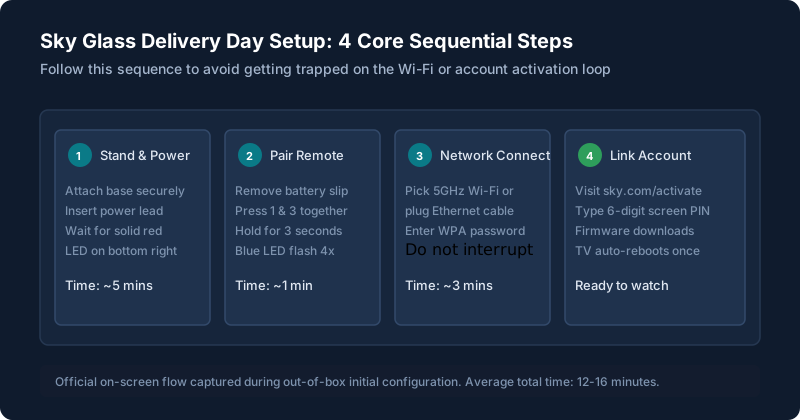
Attach the stand base securely using the supplied bolts. Position the TV near your wall socket. Connect the figure-8 power lead firmly into the rear cavity until you hear a positive click. The red standby LED on the lower bezel will illuminate.
Connecting to Wi-Fi
Turn on the TV. When prompted, select your wireless network. We strongly recommend picking the 5GHz band of your router if available. Enter your password. If you experience connection drops, see our guide on Wi-Fi and buffering problems.
Connecting With an Ethernet Cable
If hardwiring, plug your RJ-45 cable into the port on the back. Once connected, enter Settings > Network and make sure Wi-Fi is toggled to OFF to prevent dual-interface gateway conflicts.
Completing the On-Screen Setup
The TV will perform an automatic software check. If an update is detected, it will download and install automatically (taking 5-15 minutes). Do not unplug the TV while the screen says "Updating software". If the update fails, see setup, PIN and account errors.
Linking Your Sky Account
A 6-digit activation code will display on the screen. On your smartphone or computer, visit sky.com/activate, log in with your Sky iD, and enter the code. The TV will confirm activation within 30 seconds and load your channel profile.
Setting Up the Remote
Remove the plastic battery tab from the remote. Hold buttons 1 and 3 together for 3 seconds pointing at the TV until you see the on-screen message confirming Bluetooth pairing. For full button shortcuts, read the Sky Glass remote guide.
Understanding the Home Screen
The top ribbon displays your TV guide and current live broadcast. The second row houses your Playlist. The third row holds your integrated third-party apps. Read our detailed guide on apps and connections.
Setting Up Picture and Sound
Once setup is complete, navigate to Settings > Picture & sound to choose your preferred picture preset (Entertainment vs Vivid) and enable Auto-Backlight. For complete calibration, see our picture and sound settings guide.
Common Setup Questions
What is my default PIN?
The default PIN is the last 4 digits of your registered phone number.
Can I plug my games console in now?
Yes! Connect your PlayStation, Xbox, or Nintendo Switch to HDMI 1 or HDMI 3.
Still stuck after trying these steps?
Did setup fail or freeze on a network prompt? Consult our targeted diagnosis for setup, PIN and account errors.