Sky Glass Setup, PIN, Account and Software Update Errors
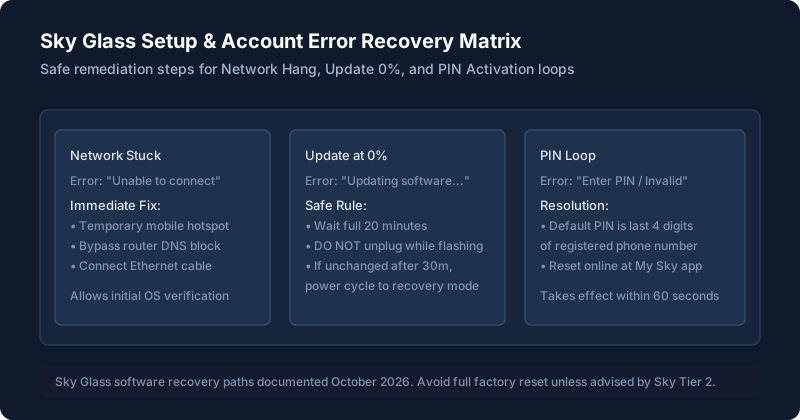
Setup Stuck on the Network Screen
If you unpack your TV and cannot proceed past the Wi-Fi connection prompt:
- Temporary Mobile Hotspot Bypass: If your home router firewall is blocking initial handshake ports, turn on Personal Hotspot on your mobile phone and connect the TV to it. Once the TV completes initial activation and downloads essential security certificates, you can switch back to your home Wi-Fi.
- For full out-of-the-box instructions, see our step-by-step Sky Glass setup guide.
Account Linking Fails
During initial setup, the TV displays a 6-digit code and prompts you to visit sky.com/activate. If the website claims the code is invalid or account linking times out:
- Open an incognito/private browsing window on your phone or laptop. Existing cached Sky sessions frequently trigger token mismatches.
- Ensure you are logging in with the primary Sky iD associated with the Glass hardware purchase.
PIN and Activation Problems
If your TV keeps demanding a PIN to unlock channels or complete activation:
- By default, Sky sets your initial PIN to the last 4 digits of your primary telephone number or payment card registered on the account.
- If that fails, do not guess repeatedly. Log into the My Sky app on your phone, navigate to TV > Manage PIN, and create a new 4-digit PIN. The updated code syncs to your TV within 60 seconds.
Software Update Stuck or Failing
When Sky Glass downloads an over-the-air firmware build, the progress bar often halts at 0% for several minutes while verifying package checksums. Do not unplug the TV while the screen says "Updating software". Interrupted flashing can corrupt the bootloader partition. Allow at least 25 minutes before intervening.
What Common Error Messages Mean
| Error Message / Code | What it means | What to do | Source |
|---|---|---|---|
| "Please check your internet connection" | TV cannot reach Sky gateway servers | Check router DNS or see Wi-Fi and buffering fixes | Sky Help Article |
| "There is a technical fault" | Video stream buffer dropped or DRM token invalid | Cycle mains power 60s or check black screen tracker | Sky Community Logs |
| "Activation code expired" | The 6-digit linking code on screen timed out | Click 'Get new code' on TV and enter within 10 minutes | Official Sky Setup |
| "PIN locked - too many attempts" | 3 incorrect PIN entries triggered security freeze | Wait 10 minutes or reset PIN via My Sky mobile app | Sky Security Policy |
Recovery Steps That Are Safe to Try
If software setup is trapped, try these non-destructive steps:
The Clean Network Reset
Disconnect the ethernet cable if attached. Power cycle the TV at the wall. Connect to 5GHz Wi-Fi directly.
Temporary Direct Ethernet Run
Run a temporary ethernet cable straight to the router to eliminate wireless interference during large firmware updates.
If your TV is frozen in an inescapable boot loop or fails software verification despite testing multiple networks, you may require a hardware recovery reflash. Do not perform recovery mode key combinations without a Sky technical agent on the phone, as this can void expedited delivery day replacement eligibility.
Still stuck after trying these steps?
If the TV fails to boot past the white Sky logo after an update, consult our specific steps for black screen and startup problems.